How to Upload and Publish a Level in Geometry Dash (2026 Guide)

Looking for how to upload and publish a Level in Geometry Dash? Creating your own custom level in Geometry Dash is one of the most exciting parts of the game. Instead of only playing official stages, players can design unique maps, add music, place obstacles, and post them for the global community.
In 2026, custom level creation is more popular than ever. More than 120 million user-created levels have already been uploaded to the game servers, showing how active the Geometry Dash community has become.
If you want to know how to upload a level in Geometry Dash, this step-by-step guide will help you create, verify, and publish your level successfully. Many beginners in the gd community also wonder whether levels can be uploaded without an account.
What Is the Geometry Dash Level Editor?
The level editor in Geometry Dash allows players to create their own custom stages using blocks, spikes, portals, triggers, decorations, and music.
The editor includes multiple tabs for building gameplay elements such as hazards, slopes, triggers, pulse effects, and decorative objects. Players can also customize the length, difficulty, and soundtrack of their levels.
Steps: To Upload and Publish a Level in Geometry Dash
1. Create Your Level
First, open the Create menu and select “New” to start building your custom level.
You can design the layout, place spikes, add portals, create jumps, and decorate the stage however you like. Try to make the level fun, balanced, and visually appealing.
Many successful creators focus on:
- Smooth gameplay
- Balanced difficulty
- Creative visuals
- Music synchronization
- Clear objectives
Many gd creators spend hours refining gameplay flow and syncing effects with music before uploading their levels publicly.
2. Test Your Level
Before uploading, you must play through the level yourself.
A Geometry Dash level cannot be published until it has been verified in normal mode. This means you must complete the entire level without using a Start Position object. If your level includes user coins, they must also be collected during verification.
This is one of the most important steps because the game will not allow unverified levels to be uploaded publicly.
3. Remove Any Start Position Objects
One common reason levels fail to upload is that a Start Position object is still active somewhere in the map.
Geometry Dash does not allow players to upload a level if it contains a non-disabled Start Position. Always check your level carefully before publishing.
Some players trying to upload levels without an account often confuse account problems with Start Position verification issues.
4. Add a Title and Description
Every level needs a title before it can be uploaded.
The title can contain up to 20 characters, including spaces. Special characters may cause search problems, so it is better to use simple alphanumeric names.
You can also add:
- A short description
- Difficulty level
- Coins
- Song information
- Password settings
- Visibility settings, such as unlisted or public
If you leave the description blank, Geometry Dash automatically shows “No description provided.”
Popular Level Length Categories
Geometry Dash automatically categorizes levels by duration:
- Tiny: 0 to 9 seconds
- Short: 10 to 29 seconds
- Medium: 30 to 59 seconds
- Long: 60 to 119 seconds
- XL: 120+ seconds
- Platformer: Separate category for platform-style levels
These categories help players know how much time a level may take to complete.
5. Choose Music for Your Level
Music is a major part of the Geometry Dash experience.
Players can use:
- Official game soundtracks
- Custom songs from the Newgrounds Audio Portal
- Songs from the in-game music library
- Tracks from the NCS library
Since Update 2.2, players have access to more than 6,000 songs in the music library.
Using the right soundtrack can make your level more engaging and memorable. Many gd creators design gameplay around the beat and rhythm of the music.
6. Upload and Publish the Level
Once everything is ready, open the editor menu and click Upload.
After submission, your level will receive a unique ID number. This ID can be used to share the level with friends, social media followers, Discord groups, or the broader Geometry Dash community.
Some creators upload levels as “unlisted” first so that testers or friends can try them before making them public. Community discussions suggest that unlisted levels remain hidden until the creator decides to share them.
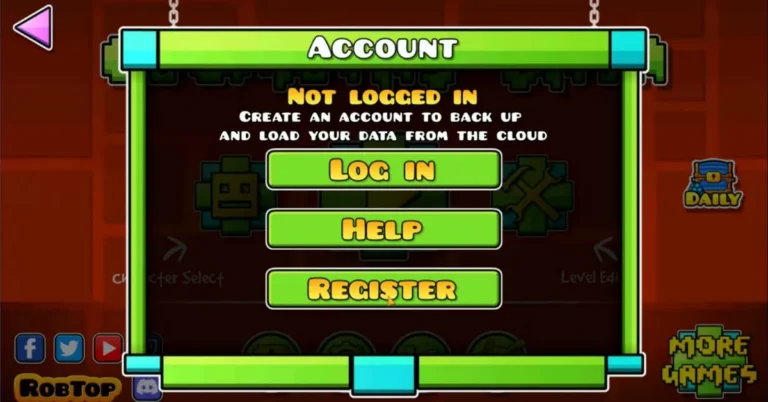
If you are trying to upload a level without an account, keep in mind that online publishing requires a registered Geometry Dash account and an internet connection.
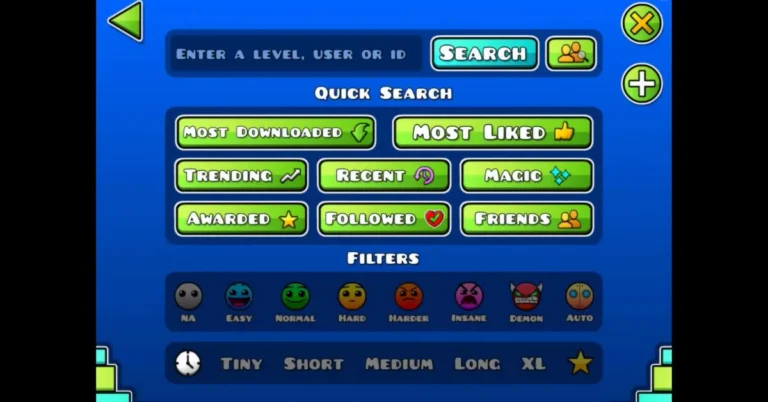
After you successfully post your level, other players can search for it using the level ID.
How to Make Your Geometry Dash Level Public
After creating and verifying your custom level, you can make it public so other players can discover and play it online.
To make your Geometry Dash level public:
- Open the level editor
- Select your completed level
- Tap the Upload button
- Add a title and description
- Make sure the level is not set to unlisted
- Publish the level online
Once you post the level publicly, it becomes searchable through the Geometry Dash servers. Other players can find it using the level name or unique level ID.
Many gd creators first upload levels as unlisted for testing and later switch them to public after fixing bugs or improving gameplay.
Benefits of Uploading Levels in Geometry Dash
Publishing a custom level offers several advantages:
- It helps you showcase creativity
- You can become known in the community
- Your level can receive likes, comments, and downloads
- You can improve game design skills
- You may even get featured by Robert Topala and RobTop Games
Featured levels are often recognized for their creativity, smooth gameplay, and strong visual design.
Pro Tips for Creating Better Geometry Dash Levels
Here are some expert tips to help your level stand out:
- Keep the gameplay fair and fun.
- Avoid making levels too easy or impossibly hard.
- Sync jumps and movements with the music.
- Use decorations carefully without causing lag.
- Add checkpoints or milestones in longer levels.
- Ask friends to test your level before uploading.
- Choose a memorable level name.
- Use creative transitions and visual effects.
Many top-rated levels become popular because they offer a balance between challenge and enjoyment.
Common Reasons Why a Level Will Not Upload
Sometimes players face upload problems. Here are the most common reasons:
- The level is not verified
- A Start Position object is still active
- No title has been added
- Internet connection problems
- Restricted words in the title or description
- Account syncing issues
- The level has not been saved correctly
Community reports also show that certain blocked words in level names can prevent uploads, even if the level itself is valid.
Many gd players also experience upload errors because their accounts are not properly synced with the game servers.
Conclusion
Uploading a custom level in Geometry Dash is one of the best ways to become part of the game’s creative community.
The process is simple: build your level, test it, verify it, add the required details, and upload it. With enough practice, you can create unique stages that other players will enjoy.
Since millions of players explore custom maps every day, your next level could become the next big hit in the Geometry Dash community. Whether you are a beginner or an experienced gd creator, learning how to post and publish levels can help you grow fast in the community.
Frequently Asked Questions
Do I need internet access to upload a Geometry Dash level?
Yes, you need an internet connection and a registered account to upload levels online.
Can I edit a level after uploading it?
You can update the description and make copies of the level, but the original title cannot be changed after publishing.
How do I find my level after uploading it?
Every uploaded level gets a unique level ID that can be searched and shared with other players.
Can unverified levels be uploaded?
Public levels must be verified first. However, some players use unlisted copies for testing and collaboration purposes.